



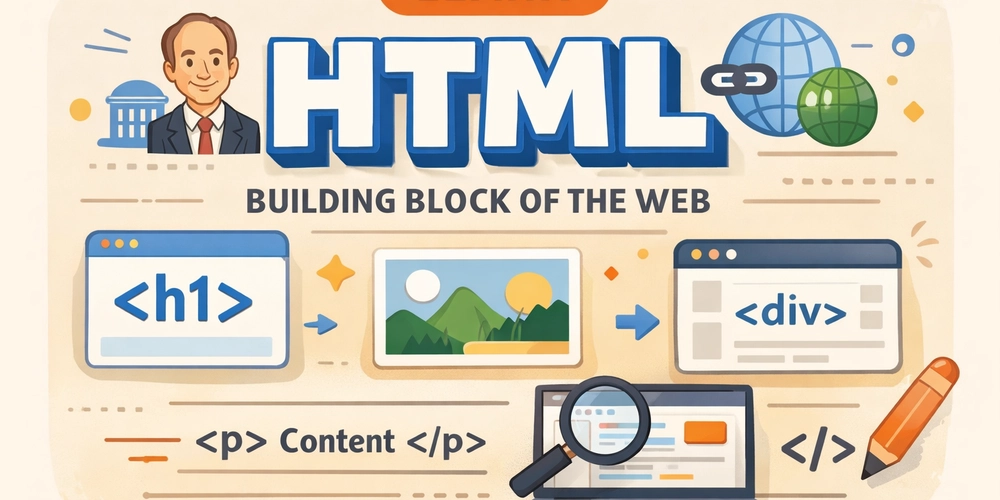
HTML(HyperText Markup Language) is a basic building block of the Web. It was created by Sir Tim Berners-Lee in 1991 at CERN to enable researchers to easily share and cross-reference documents over the internet.
“Hypertext” refers to links that connect web pages to one another, either within a single website or between websites. Links are a fundamental aspect of the Web.
HTML is not a Programming language as it does not perform any calculations. It’s a “Markup” language, which means it provides structure to web content.
In simple term we can say HTML is the skeleton of the website. It provides the structure and defines what content appears where.
How you can use HTML
The thing that is surrounded by an angle bracket is called the HTML Tag. This is a keyword that is used to write HTML. is a Opening Tag. is a Ending Tag. The actual meaning of the tag will be covered in a minute. Within the tags, the actual content resides. The tag tells the browser how to render that content.
An attribute in HTML is extra information added to a tag to control its behavior or give more details about an element.
Example:
Here src and alt are the attributes of the tag. src tells where the image is and alt gives an alternative text when the image does not load.
The combination of the Opening tag, Content and Closing tag is called a HTML element.
Some tags in HTML
1.
This is a heading tag. It ranges from to
This is h2
This is h3
This is h4
This is h5
This is h6
In the browser you will see something like this:
2.
This is a paragraph tag. It is used to represent a paragraph.
This blog is all about learning web development
in a simple and practical way.

What You Will Learn
You will understand HTML basics, how headings work,
and how content is structured on a webpage.
In the Browser you will see something like this:
3.
tag
The
tag is the generic container for flow content. It has no effect on the content or layout until styled in some way using CSS.
This is the main section of the page.
About
This section contains information about the blog.
In the browser you will see something like this:
As you can see there is no visual changes. But it is widely used in development. You can see the true potential of the
tag by applying css.
4.
The
- The image tag generally has 8 attribute:
- src: Specifies the image path or URL
- alt: Alternate text shown if image fails to load (important for accessibility)
- width: Sets the width of the image
- height: Sets the height of the image
- title: Shows text when you hover over the image
- loading: Controls image loading behavior
- srcset: Used for responsive images
- sizes: Works with srcset to define image size rules
In the browser you will see something like this:
What is a self closing tag?
You can observe that in
A self-closing tag is used when an element does not need anything inside it. Some HTML elements only show something or do one small job, so they don’t need a closing tag.
Like in the case of the
In simple words if there is no content inside then no need of closing tag.
Block level elements and Inline elements
Block level elements are those type of HTML elements that take up the whole width of the page and start on a new line.
Examples:
,
,
and
This is a block
This is a paragraph
In the browser you will see something like this:
Inline elements are those type of HTML elements that do not start on a new line and take only as much space as needed.
Examples:
This is inline text inside a paragraph.
Link
In the browser you will see something like this:
Conclusion
HTML is something you understand better by doing, not by memorising. You don’t need to remember every tag out there, in real projects, you’ll end up using a small set of common tags again and again like headings, paragraphs, divs, images, and links.
The best way to learn HTML is to explore, try things on your own, and break stuff. Write code, see what changes in the browser, and learn from that. Focus more on practice than remembering tag names.
Exercise
Open any website, right-click, and choose Inspect.
Explore the HTML structure of that page and try to understand how different tags are used. This is one of the best ways to learn how real websites are built.
Hope you liked this blog. If there’s any mistake or something I can improve, do tell me. You can find me on LinkedIn and X, I post more stuff there.
The
This is the main section of the page.
About
This section contains information about the blog.
In the browser you will see something like this:
As you can see there is no visual changes. But it is widely used in development. You can see the true potential of the
4.
The tag embeds an image into the document.
- The image tag generally has 8 attribute:
- src: Specifies the image path or URL
- alt: Alternate text shown if image fails to load (important for accessibility)
- width: Sets the width of the image
- height: Sets the height of the image
- title: Shows text when you hover over the image
- loading: Controls image loading behavior
- srcset: Used for responsive images
- sizes: Works with srcset to define image size rules
In the browser you will see something like this:
What is a self closing tag?
You can observe that in tag, we have an opening tag and a closing tag, but in the tag, we don't have a closing tag.
A self-closing tag is used when an element does not need anything inside it. Some HTML elements only show something or do one small job, so they don’t need a closing tag.
Like in the case of the tag, we need to give a closing tag, otherwise, the browser will not know where the end of the heading is. But the tag does not need any closing tag as it only needs to embed the image.
In simple words if there is no content inside then no need of closing tag.
Block level elements and Inline elements
Block level elements are those type of HTML elements that take up the whole width of the page and start on a new line.
Examples:
,
and
This is a block
This is a paragraph
In the browser you will see something like this:
Inline elements are those type of HTML elements that do not start on a new line and take only as much space as needed.
Examples: ,,, and
This is inline text inside a paragraph.
Link
In the browser you will see something like this:
Conclusion
HTML is something you understand better by doing, not by memorising. You don’t need to remember every tag out there, in real projects, you’ll end up using a small set of common tags again and again like headings, paragraphs, divs, images, and links.
The best way to learn HTML is to explore, try things on your own, and break stuff. Write code, see what changes in the browser, and learn from that. Focus more on practice than remembering tag names.
Exercise
Open any website, right-click, and choose Inspect.
Explore the HTML structure of that page and try to understand how different tags are used. This is one of the best ways to learn how real websites are built.
Hope you liked this blog. If there’s any mistake or something I can improve, do tell me. You can find me on LinkedIn and X, I post more stuff there.