



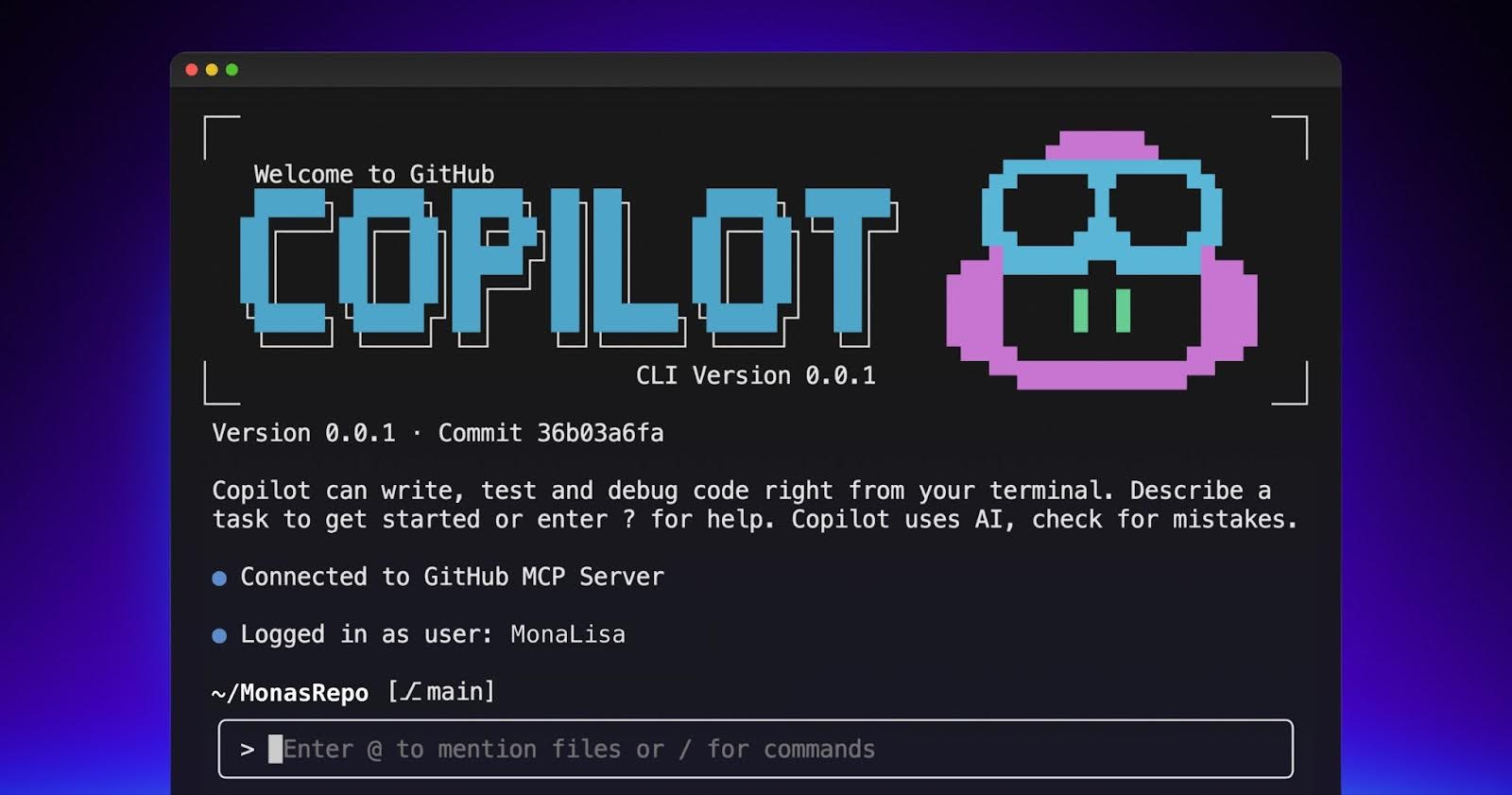
Since GitHub Copilot CLI launched in public preview in September 2025, we’ve been shipping frequent regular updates and advancements.. Below, we’ll show you what makes Copilot CLI so special, why it’s great to have an agentic AI assistant right in your terminal, and how we’re building the Copilot CLI to connect more broadly to the rest of the GitHub Copilot ecosystem.
Note: This blog is based on a GitHub Universe 2025 presentation. Watch below to see the functionality in action. 👇
Bringing the CLI to where you work
If you use GitHub Copilot in VS Code or in a similar IDE, consider how often you spend your entire working day in the IDE, trying to avoid doing anything in any other working environment. We kept this thought top of mind when we conceptualized the GitHub Copilot CLI.
Developers spend time using ssh to connect to servers, debug things in containers, triage issues on github.com, manage CI/CD pipelines, and write deployment scripts. There’s a lot of work that doesn’t neatly map into an individual IDE or even a multipurpose code editor like VS Code.
To make sure that we brought the GitHub CLI to developers where they already are, it made sense to go through the terminal. After all, the terminal transcends all the different applications on your computer and, in the right hands, is where you can accomplish any task with fine-grained control. Bringing GitHub Copilot into the CLI and giving it access to the broader GitHub ecosystem lets you spend more time getting your work done, and less time hunting down man pages and scouring through documentation to learn how to do something.
Showcasing the GitHub CLI functionality
Often, the first step with a project is getting up to speed on it. Let’s consider an example where you’re filling in for a friend on a project, but you don’t know anything about it—you don’t know the codebase, the language, or even the framework.
You’ve received a request to update a feedback form because the UI elements are not laid out correctly. Specifically, the Submit Feedback button overlaps the form itself, obscuring some fields. Whoever submitted the bug included a screenshot showing the UI error.
To get started, you can launch the GitHub CLI and ask it to clone the repository.
Clone the feedback repo and set us up to run itAfter sending this prompt, Copilot will get you everything you need: It will reference the documentation associated with the repository and figure out any dependencies you need in order to successfully run it. It’s a fast way to get started, even if you’re not familiar with the dependencies required.
Copilot will prompt you before running any commands to make sure that it has permission to do so. It will tell you what it’s doing and make sure that you authorize any commands before it runs them.
Now let’s say that your repository is set up and you go to run the server, but you receive an error that the port is already in use. This can be a workflow killer. You know that there are commands you can run in the terminal to identify the process using the port and safely shut it down, but you might not remember the exact syntax to do so. To make this much easier, you can just hand the task over to Copilot.
What is using port 3000?Without you needing to look up the commands, Copilot can determine the PID using the port. You can then either kill the process yourself or hand that task over to Copilot so you can focus on other tasks.
Find and kill the process on port 3000Continuing with our example, you now have the repository up and running and can verify the error with the Submit Feedback button. However, you don’t want to look through all of the code files to try and find what the bug might be. Why not have Copilot take a look first and see if it can identify any obvious issues?
Copilot can analyze images, so you can use the image supplied in the bug report. Upload the screenshot showing the error to the repository, and ask Copilot if it has any ideas on how to fix the bug.
Fix the big shown in @FIX-THIS.PNGCopilot will attempt to find and fix the issue, supplying a list of suggested changes. You can then review the changes and decide whether or not to have Copilot automatically apply the fixes. And we’re able to do all of this in the terminal thanks to the GitHub CLI.
However, before uploading these changes to the repository, the team has very strict accessibility requirements. You might not be familiar with what these are, but in this example, the team has a custom agent that defines them. It has all the right MCP tools to check on the guardrails, so you can leverage the agent to do an accessibility review of any proposed changes.
/agentThis command provides a list of available custom agents, so you can select the appropriate one you want to use. Once you select the appropriate agent, simply ask it to look over the proposed changes.
Review our changesThis prompt sets the coding agent to work, looking at your changes. If it finds any issues, it will let you know and suggest updates to make sure your changes are aligned with its instructions. This can be immensely powerful with the appropriate agents to leverage to provide checks on your code.
Finally, let’s say you want to know if there are any open issues that map to the work that you’ve done, but you don’t want to manually search through all of the open issues. Luckily, Copilot CLI ships with the GitHub MCP server, so you can look up anything on the GitHub repository without needing to manually go to github.com.
Are there any open issues that map to the work we're doing?The GitHub MCP server will then go through and search through all of the issues and identify any that might match the work that you’ve addressed. If it pulls up issues that aren’t completely resolved by the work that you’ve done, you can still delegate this work to a coding agent so that you can continue working on whatever you’re focused on.
/delegate Finish fixing the issue outlined in #1 and use the playright MCP server to ensure that it's fixedThe /delegate command dispatches a coding agent to work on the task for you in the background while you turn your attention to other areas. It will open a pull request for future work that the coding agent performs. This is identical to the standard Copilot coding agent workflow—just started through GitHub Copilot CLI.
Headless operation for scripting and automation
GitHub Copilot CLI has even more functionality than what we’ve previously showcased. You can now perform tasks headlessly in the Copilot CLI. Remember the example where we talked about identifying and killing the process running on port 3000? You could do this through the CLI with the following command.
copilot --allow-all-tools -p "Kill the process using port 3000"Copilot will then use the appropriate commands to identify and kill that process. While this is a simple example, you can think of more complex scenarios where you could hook this up into a script or actions workflow and reuse it over and over again.
Note that this included the flag –allow-all-tools, which is probably not something you want to include in an actual environment unless you’re running in a container. Luckily, we provide several flags that you can pass to only allow access to certain directories and tools. You can even restrict Copilot from using specific commands, so you can guarantee that a human is always involved, such as with pushing up to a repository.
To see a list of possible flags, run the following command.
copilot --helpYou can authenticate interactively with a login command or by using a personal access token. This way, you can use this with automations. We’re also actively working on more authentication methods that are more enterprise friendly.
Trying the Copilot CLI yourself
We’re constantly shipping updates and are always looking for feedback from our users. We have several open issues and are tracking the items that customers want to see. If you want to see what we’re working on and provide feedback, check out our public GitHub Copilot CLI repository.
And if you want to get started, it’s incredibly easy. It’s available for Windows (both WSL and natively in PowerShell), Mac OS, and Linux. We provide several platform-specific ways to install the CLI in the Copilot CLI README.
Give it a try and come join the conversation on our public repository to help us build the best terminal-based AI system we possibly can. We look forward to hearing your feedback!
Get started with GitHub Copilot CLI >