



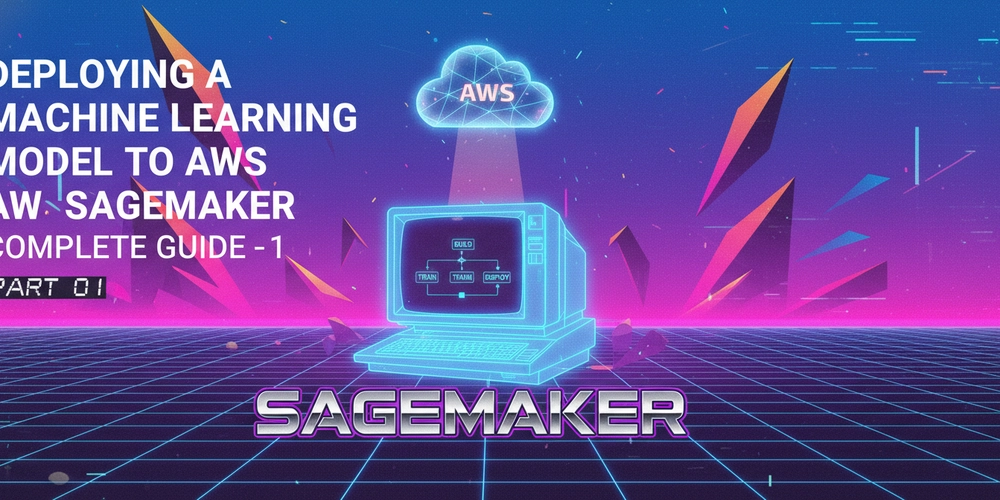
So today we will see how to deploy a custom made machine learning model or any other model you find on Hugging Face directly on the compute powerhouse that’s AWS using severall of their services, mainly AWS Sagemaker, API Gateway, Lambda Functions.
AWS Sagemaker, like the name suggest it’is the “sage maker”, i.e the one creating sages, in our case the one creating AI.
API Gateway, a way for our API to get out there :), it will be mainly used for stuff like taking our deploying model out there for others devs to play with via API calls
Lambda function, will serve as the little policeman deciding which road each request should take, think of it as a control point where incoming calls will be filter out and redirected or formatted to what the AI model expect. The beautifull part is that it’s serveless so we won’t need to spin up our own server for it.
With that little explanation as avant gout let’s get into the real stuff.
Question: Will it be costly ??
Yes, a bit, but since this is for learning purposes just prepare maximum 5$ if you leave the setup in AWS for more than 6hours.
PS: I strongly suggest you setup billing alerts to something like 5$, like that you will be alerted when things start gettintg really dangerous .
The first service we are going to use is AWS SageMaker AI, which is the “AI crafter*“* we have been talking about, so just search “AWS SageMaker ” on the top left search bar, your screen should be similar to the following :
On the homepage of the service , we can see several options from the left sidebar, the one that interest us is “Notebooks”, click on it and let’s create our first notebook in the cloud .
What’s a Notebook in AWS SageMaker?
An Amazon SageMaker notebook instance is a machine learning (ML) compute instance running the Jupyter Notebook application. more on it here .
Now click on “create Notebook instance” button, and prepare yourself to fill some forms…
Don’t worry, it will be short,so give it a name, in our case I am going to call it “translation-model-01”, next the instance type, which refers to the amount of compute power you will need (can be changed later), note that the more powerful an instance is, the more you will be billed per hour, so be cautious not to choose something too high, always refer to the pricing page.
In the next section of the form, we are asked to give details about permissions and encryption, for that we have the possibility to either choose a predefined or existing role, or to create one.
A role is an IAM identity that has permissions to perform actions with AWS services, here think of identity as a person, an organization.
But what’s the point of using Roles, then assigning capabilities when we can just go ahead and create everything and manage it with our account? Me too I am wondering.. was…, yeah still a little, but long story short we want to give as less privilege as possible so that even in the event that an attacker succeed in exploiting a vulnerability through let’s say SageMaker, he won’t get access to your full account, rather to a role that can only perform carefully selected activities.
The default configurations for the role is ok for now, but you should really think about consequences that what you do or choose might have in the futur, like giving full access to all s3 buckets in your account might sometimes be a bad move.
Then click on “create role” some minutes after that, you will see the green successful message and the role will be auto selected.Leave all the rest of details as they are and click on “Create notebook”
Now that the notebook has been created (5-10 mins), we can move on to opening it, right away you will see 2 options : Jupyter & JupyterLab. They are both programs which allows a programmer to interactively write code, run it, keep their data and variables intact, then rewrite, re-run, and refine their code on-the-fly*, it’s called a* Read-Eval-Print-Loop (REPL).
At the top left you should be able to see the different available menu options, again it’s just like in VSCode, for now let’s just create new notebook via the “File>New>Notebook” menu option, next you will be prompt to select a kernel for the notebook, and the default one will be perfectly fine for our use case.
For our python or Markdown(.md files) code to be executed, we need a kernel, you can think of it, like the interpreter you will download if you were working locally, the difference can be that in this case it comes ready with some pre-configurations already applied out of the box.
JupyterLab Main editor screen, the JupyterLab is kind of an IDE or Integrated Development Environment in the sense that you get access to not just the editor but file explorer terminal and a lot more.
In the provided screenshot we created a notebook file, for now “Untitled.ipynb” (We can rename it later & ipynb for iPython notebooks), and in it we are going to write the same code we would write in google collab.
For now a simple python code is writen and you can run it with Shift + Enter, you should see the result in the next cell, in this case “Hello World!” is printed.
That’s it for today!